

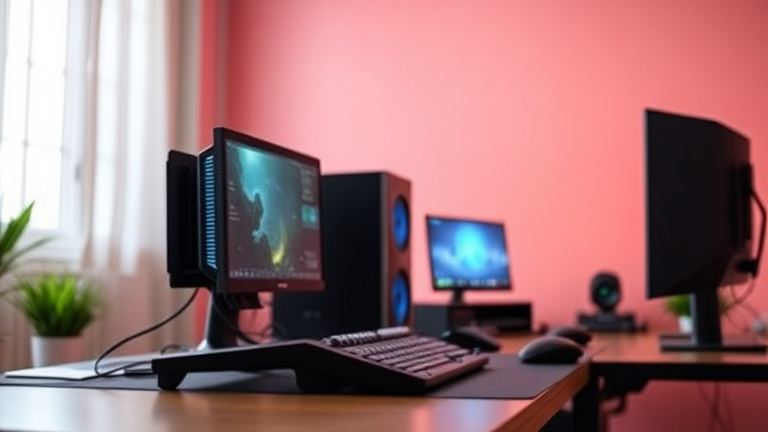
Having difficulty to attain smooth performance in your favorite games? Whether you’re battling lag in competitive shooters or experiencing stuttering in large-scale open-world titles, enhancing your PC’s gaming capabilities is crucial for an immersive experience. This guide explores tested methods to improve your frame rates, from adjusting graphics settings and updating drivers to enhancing your hardware and adjusting system configurations. Learn how to tap into your PC’s gaming capabilities and achieve fluid gameplay.
Graphics Performance Optimization
Graphics settings are the main tool for regulating frame rates in today’s games. By methodically modifying these parameters, you can dramatically improve performance without compromising visual quality. Resolution, texture detail, shadow quality, and anti-aliasing are key settings that greatly influence frame rates. Decreasing resolution from 4K to 1440p or 1080p can yield significant performance improvements. Similarly, lowering texture settings from ultra to high or medium settings reduces memory bandwidth requirements, allowing your GPU to render frames faster and more efficiently.
Understanding which configurations have the greatest performance impact helps you achieve better optimization decisions. Shadow quality, ray tracing, and ambient occlusion are exceptionally resource-intensive features that significantly strain your graphics card. Disabling or lowering these effects can provide dramatic frame rate enhancements. Anti-aliasing methods like FXAA offer smoother edges with low performance cost, while MSAA consumes considerably more resources. Start by eliminating taxing features, then incrementally restore them until you achieve your target frame rate. This step-by-step process ensures optimal visual fidelity within your performance parameters.
Display Configuration and Resolution
Resolution represents the total number of pixels your GPU must process each frame. Increased resolution settings require exponentially more computational resources, making resolution tuning one of the most effective optimization strategies. Your monitor’s native resolution provides the sharpest visual quality, but lowering from 4K to 1440p can double your frame rates on demanding titles. For competitive gaming, many professionals favor higher frame rates rather than resolution, selecting 1080p at 144+ fps over 4K at 60 fps. Adaptive resolution technology dynamically modifies resolution based on performance, preserving consistent frame rates throughout gameplay.
Refresh rate synchronization solutions like V-Sync, G-Sync, and FreeSync prevent screen tearing and stuttering by matching frame output with your monitor’s capabilities. However, V-Sync can cause input lag and frame rate caps. G-Sync and FreeSync offer better options by adjusting refresh rates without artificial limitations. Frame rate limiters allow you to set a maximum frame rate, reducing excess GPU load and thermal output. Setting your cap slightly below your GPU’s maximum capability ensures stable, consistent performance and extends component lifespan during extended gaming sessions.
Hardware Upgrades and Maintenance
Important Hardware Elements
Your PC’s system architecture significantly affects gaming performance and frame rates. The graphics processing unit (GPU) remains the most critical component for gaming, as it manages rendering and visual calculations. A contemporary, powerful GPU can substantially enhance frame rates across all game titles. Additionally, your processor (CPU) serves a crucial function in processing game logic and physics calculations. Pairing a powerful GPU with a capable CPU ensures balanced performance without bottlenecking. Consistent system upkeep, including removing debris from cooling systems and ensuring proper airflow, prevents thermal throttling and sustains optimal performance reliably.
Storage solutions also affect gaming performance significantly. Upgrading to a solid-state drive (SSD) reduces game loading times and enhances overall system responsiveness. More RAM provides smoother gameplay, particularly in demanding titles with high-resolution textures and complex environments. Consider upgrading to a minimum of 16GB of RAM for optimal gaming experiences. Power supply units should provide adequate wattage to support your components reliably. When planning upgrades, focus on key upgrades based on your current bottleneck and gaming goals, ensuring each investment maximizes your frame rate improvements effectively.
Maintenance Best Practices
Regular maintenance prevents performance degradation over time. Dust accumulation within your computer case restricts airflow, leading to components to overheat and reduce performance. Wipe down your case, fans, and heatsinks on a monthly basis by using compressed air and soft brushes. Check your system temperatures with software tools, making sure GPUs and CPUs remain within safe temperature ranges. Replace thermal paste on your CPU once every 2-3 years to preserve optimal heat transfer. Inspect cable organization to increase air circulation and stop airflow restriction. These protective steps ensure your hardware functions at peak efficiency without interruption.
Software-level servicing supports physical upkeep effectively. Refresh your BIOS regularly for hardware reliability and better compatibility. Maintain your operating system and all drivers up to date, as manufacturers deliver performance enhancements often. Eliminate unneeded background programs draining system resources and RAM. Defragment mechanical drives or tune SSDs periodically to maintain file access speeds. Check your storage capacity, keeping at least 10-15% free space for peak system performance. Combining hardware maintenance with system optimization creates the optimal conditions for peak gaming performance and system lifespan.
System Setup and Advanced Adjustments
BIOS and Firmware Enhancement
Accessing your system BIOS settings can unlock significant performance gains often missed by casual gamers. Activate XMP or DOCP profiles to boost memory performance, as faster memory significantly affects frame rates in modern titles. Refresh your motherboard firmware regularly to take advantage of enhanced reliability and speed optimizations. Additionally, turn off unnecessary power-saving features that limit processor speed during gaming sessions, ensuring steady CPU output for resource-intensive programs.
Overclocking your CPU and GPU through BIOS represents an advanced but rewarding optimization path for experienced users. Increase clock speeds gradually while monitoring temperatures to avoid thermal throttling or hardware failure. Many contemporary CPUs include built-in overclocking settings that deliver safe performance boosts without manual tweaking. Keep in mind overclocking may void warranties, so proceed cautiously and research your specific hardware carefully before implementing modifications.
Windows and Hardware Driver Configuration
Optimizing your Windows OS configuration greatly boosts gaming performance and system stability. Turn off background applications and superfluous startup processes draining CPU and RAM memory during gaming sessions. Change power settings to “Maximum Performance” mode, stopping the system from decreasing processor speed to save power. Disable graphical effects and animations in Windows configuration, redirecting system resources to your games instead of visual interface features.
Graphics driver optimization remains crucial for maintaining peak gaming performance across all titles. Install the latest driver versions from NVIDIA, AMD, or Intel, as manufacturers regularly deliver updates with game-specific optimizations. Enable driver-level features like NVIDIA’s DLSS or AMD’s FSR to boost frame rates through intelligent upscaling technology. Regularly clean old driver installations using dedicated removal tools before installing newer versions, avoiding conflicts that cause stuttering or crashes.
System and Network Oversight
For competitive multiplayer games, connection optimization is just as crucial as graphics settings for competitive performance. Lower latency by connecting via ethernet instead of Wi-Fi, ensuring stable connections during critical moments. Turn off background downloads and streaming services using bandwidth, prioritizing gaming traffic through Quality of Service settings on your router. Check ping rates and packet loss using in-game statistics to spot connection problems impacting gameplay performance.
Deploy thorough performance tracking to identify efficiency constraints while gaming. Employ software like MSI Afterburner or HWiNFO to monitor CPU, GPU, and memory consumption in real-time, revealing which hardware elements cap frame rates. Track thermal levels continuously, as thermal throttling significantly reduces performance when hardware gets too hot. Create performance benchmarks both before and after optimizations, letting you measure gains and identify which adjustments deliver the greatest frame rate gains.
